Guides June 20, 2026 4 min read
Complete Firestick IPTV Setup Guide (2026)
By Alex Mercer (Tech Support Lead)
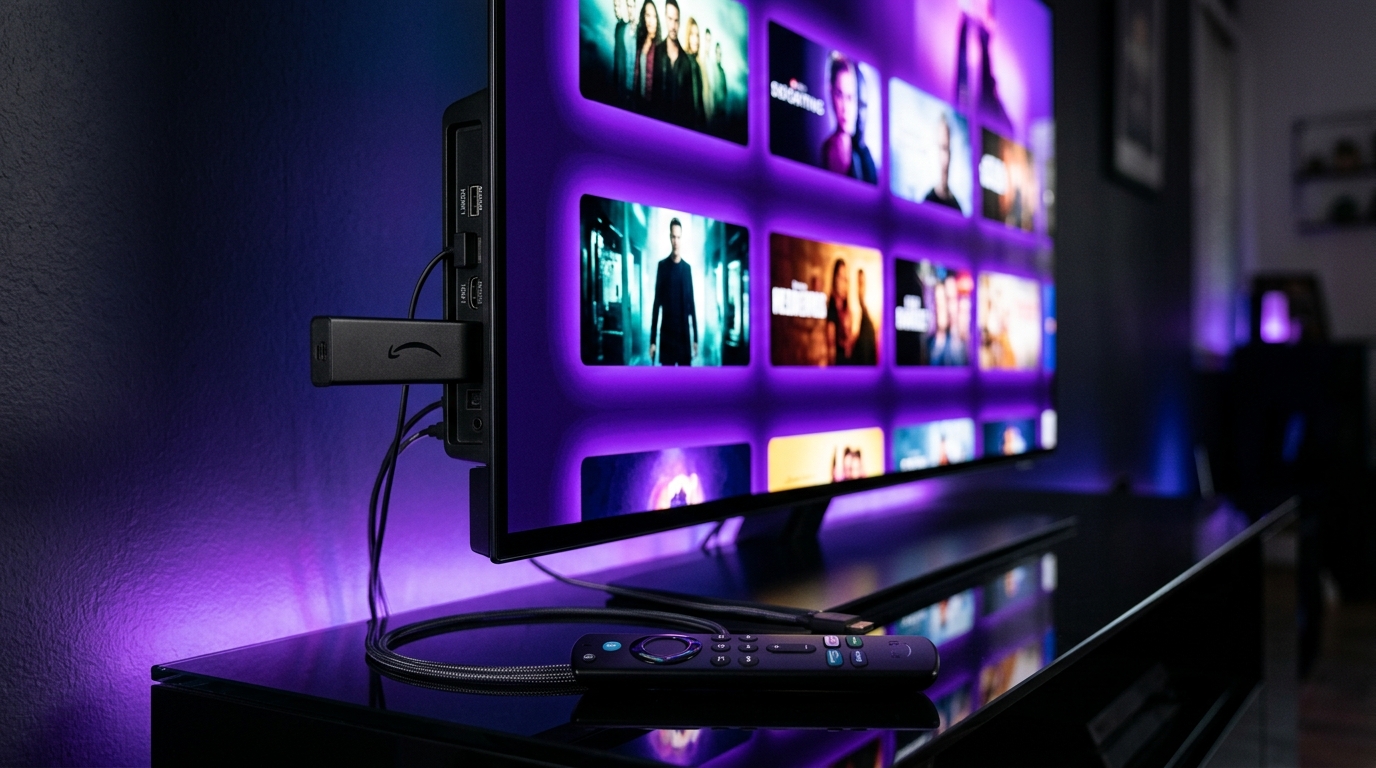
Amazon Fire TV Sticks are the most popular devices for streaming IPTV, but default settings can often restrict performance. In this comprehensive guide, we cover the exact steps to optimize your experience.
1. Enable Apps from Unknown Sources
To load custom IPTV players like IBO Player Pro, ORA Player, or Tivimate, navigate to Settings > My Fire TV > Developer Options. Turn on 'Install unknown apps' for Downloader.
2. Install Downloader App
Search for the 'Downloader' app on the Amazon App Store. This utility allows you to enter direct download codes like 8408809 (ORA Player) or 2533617 (IBO ONE).
3. Load the Player & Insert Your Obsidian Playlist Link
Once your player is installed, open it and choose 'Add Playlist'. Copy the raw M3U URL or insert the Xtream Codes API login coordinates delivered to your email upon checkout.
4. Optimize Buffer Settings
For 4K HDR streams, ensure your player's buffer size is set to 'Medium' or 'Large' in settings. This caches incoming segments and prevents freezing due to local WiFi jitter.
Recommended Ecosystem
Browse All 7 Players →Compatible IPTV Players & Setup Walkthroughs
Code: 611293ORA Player Pro →Code: 272483TiviMate Premium →HardwareFire TV Stick →Tizen OSSamsung Smart TV →
Ready to stream on your favorite player?
Instant M3U & EPG delivered immediately. Zero KYC, crypto & bank transfer accepted.
Ready to test this configuration?
Experience 25,000+ Channels with 24 Hours Free Trial
Dedicated IPTV Players
Compare ORA, IBO Player Pro, TiviMate & download officially.
Included Licenses
Get 1 Year free with 12M plan, or Lifetime free with 24M plan.
Instant WhatsApp Setup
Chat 24/7 with our engineers for custom test M3U links.
Have a technical setup question about this article?
Our specialized stream engineers operate 24/7. Submit an inquiry or chat with us directly.